Creating a New Signature
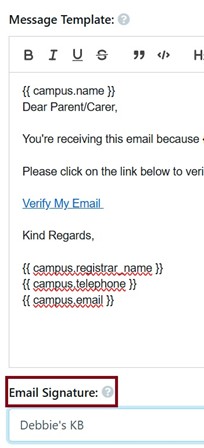
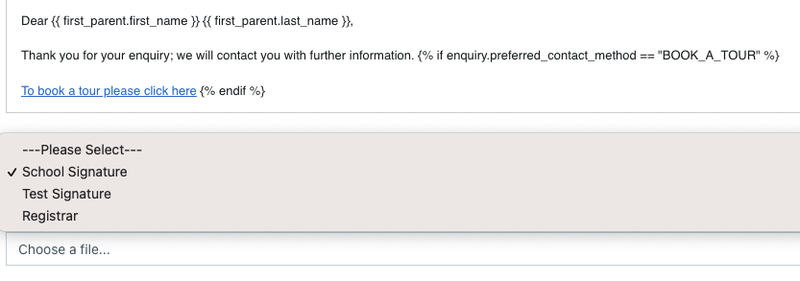
Every email template has an ‘Email Signature’ dropdown that allows you to select the email signature used. Sometimes it is necessary to sign off as the Principal, other times as the Registrar and sometimes as the ‘Director of Communications’ for Events/Interviews.
To set up signatures, you will need to get an HTML script from the IT team. IT is usually responsible for setting up the HTML signatures in Outlook and the same HTML can be copied and pasted into EnrolHQ.
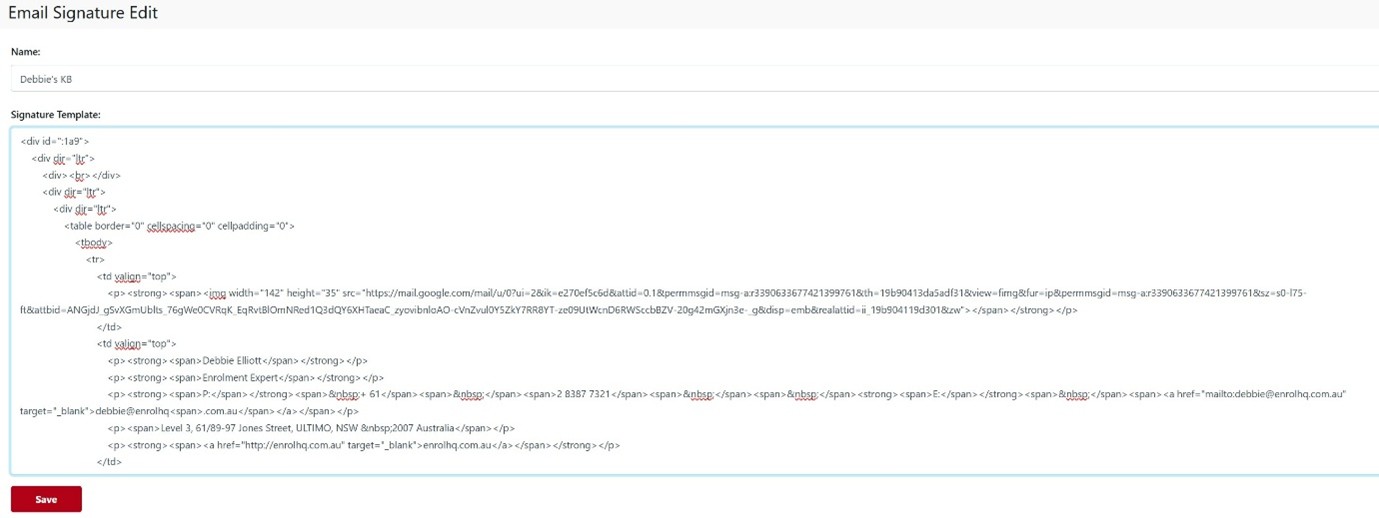
- Email Settings > Signatures
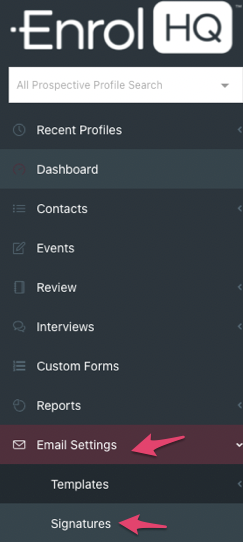
This area of the Email Settings gives you raw HTML access to set up Email Signatures. For example, if you want to include a school crest and style the text of your email signatures in a particular way then you can use the raw HTML to create the signature. Please get in touch with EnrolHQ support if you are not sure how to use this feature, we will help schools create these HTML signatures.
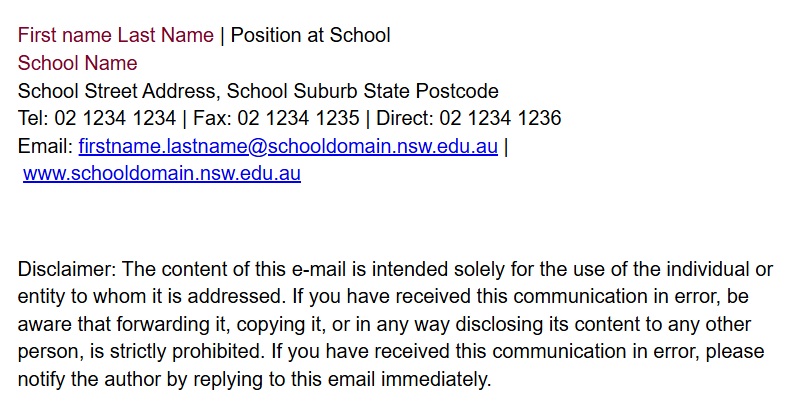
An example to copy and paste is provided below. Replace with your own school details and change the colour to school colour (your school’s IT or Marketing Department will know the hex code):
First name Last Name | Position at School
School Name
School Street Address, School Suburb State Postcode
Tel: 02 1234 1234 | Fax: 02 1234 1235 | Direct: 02 1234 1236
Email: firstname.lastname@schooldomain.nsw.edu.au | www.schooldomain.nsw.edu.au
Disclaimer: The content of this e-mail is intended solely for the use of the individual or entity to whom it is addressed. If you have received this communication in error, be aware that forwarding it, copying it, or in any way disclosing its content to any other person, is strictly prohibited. If you have received this communication in error, please notify the author by replying to this email immediately.
Using the above HTML, your signature will look like this:
NOTE: The file name of the GIFs - the filenames MUST NOT have the ‘@’ character in it and that causes all sort of problems.
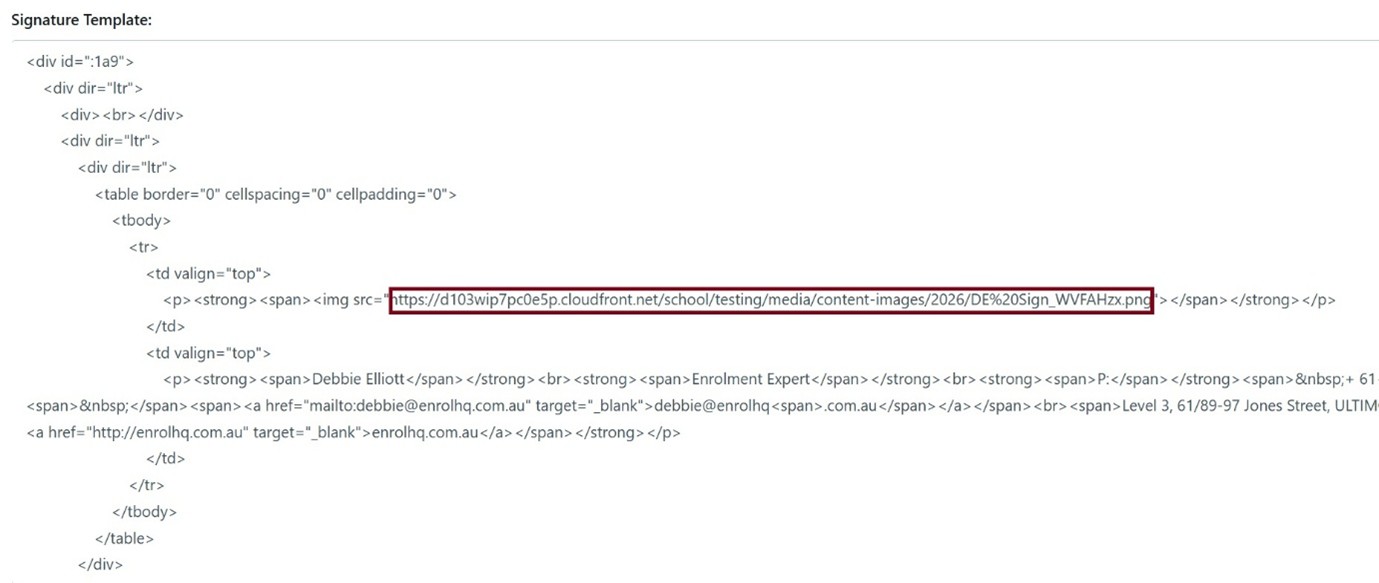
Make sure the name of the image files to have no @ symbol. Just smgslogo-2x.png and smgs-banner-2026-2x.gif (replace @ with -)
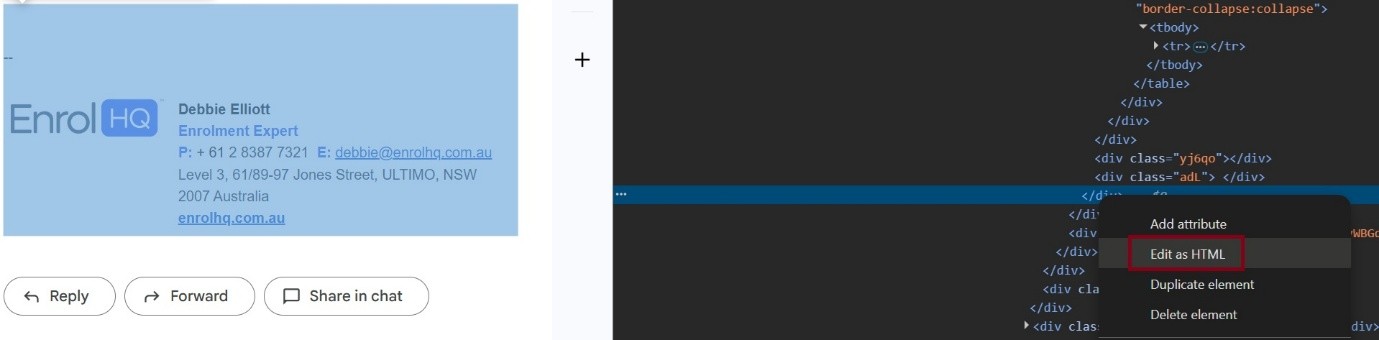
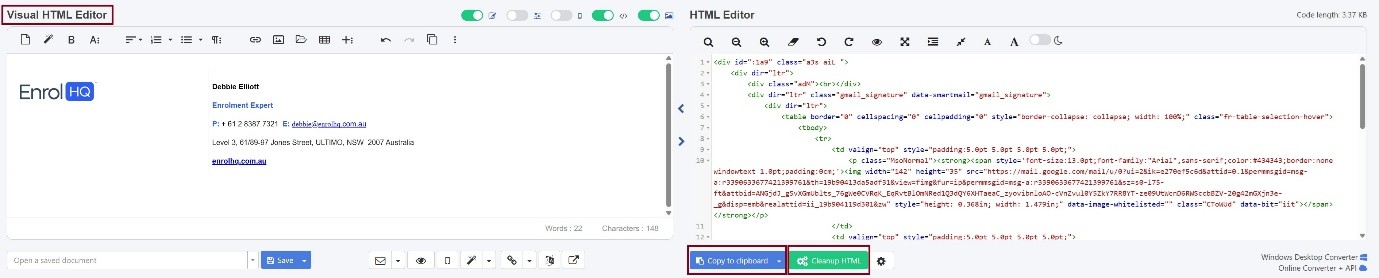
Using HTML to Recreate your Existing Signature
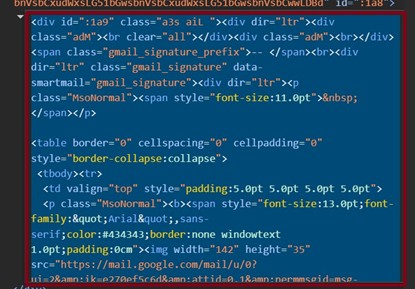
Follow these steps to recreate your email signature from your Mailbox.
- Send yourself an email
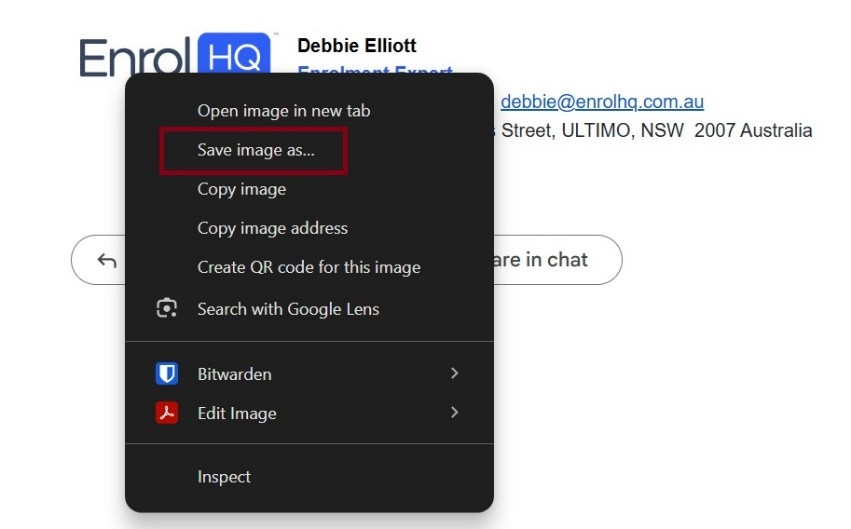
- Right click on the signature and select Inspect
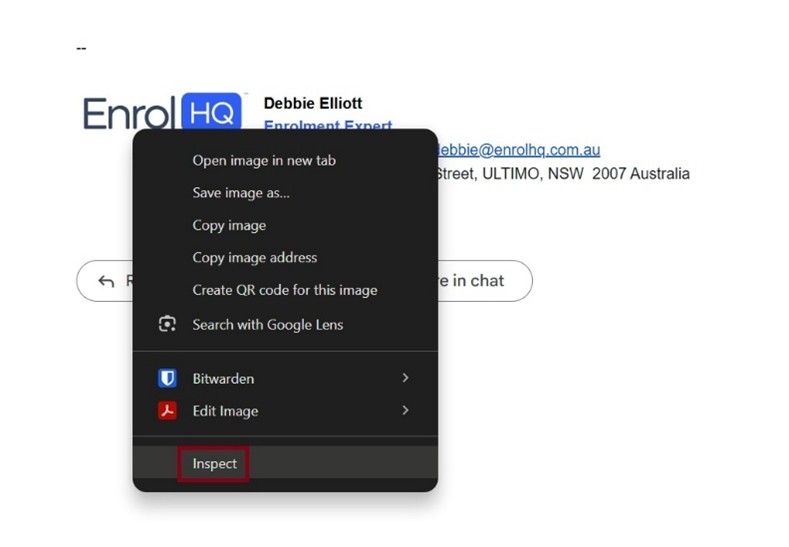
- Select the HTML to be copied from the Inspect window by moving the mouse around and opening any closed